How do I connect Gorgias?
Requests from your agenola chat open as tickets in Gorgias with the whole conversation, and your team replies by email from Gorgias as usual.
- Plans
- All plans
- Roles
- Owner, Admin
- An agenola account with the Owner or Admin role in the workspace you connect.
- An admin account in Gorgias, needed to install apps and approve the connection.
- At least one support email address connected in Gorgias (Settings → Channels → Email). Tickets from agenola arrive at one of these addresses.
- A published flow where visitors can leave a request: a “Request” step, or an AI assistant that hands off to one. See Requests.
What the Gorgias integration does
When a visitor leaves a request in your agenola chat, for example about a damaged order the assistant can't fix on its own, agenola opens a ticket in your Gorgias. The ticket arrives as an email from the visitor to the support address you choose, so it lands in your inbox, your rules and views apply to it, and your team replies by email as usual.
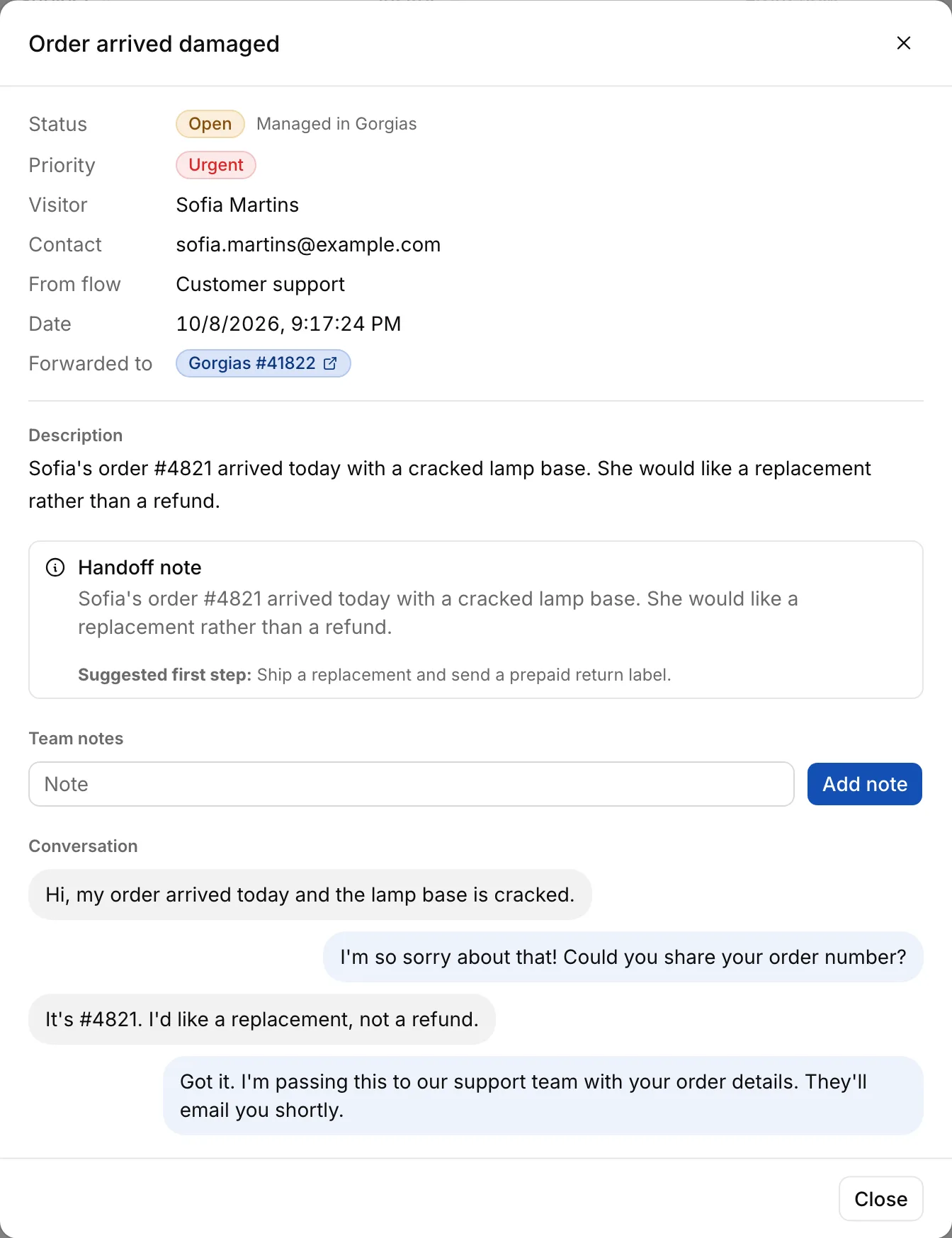
The ticket starts with the handoff note (a summary and a suggested first step), followed by the visitor's name and contact details, the flow the request came from and the whole conversation. Urgent requests are tagged.
In agenola, each forwarded request links to its Gorgias ticket and shows whether it is open or closed in Gorgias. Your flows can also create and update tickets, add internal notes and manage customers in Gorgias.
Install from Gorgias
- In Gorgias, go to Settings → Integrations, find Agenola and click “Connect App”.
- Sign in to agenola, or create an account. The connection goes to the workspace you used last; if you have more than one, open the right one in agenola first.
- Gorgias's consent screen opens. Check the permissions and approve.
- You land on Integrations → Gorgias in agenola with “Gorgias is connected. Check the support address tickets should arrive at below.” Then choose the support address as described below.
Or connect from agenola
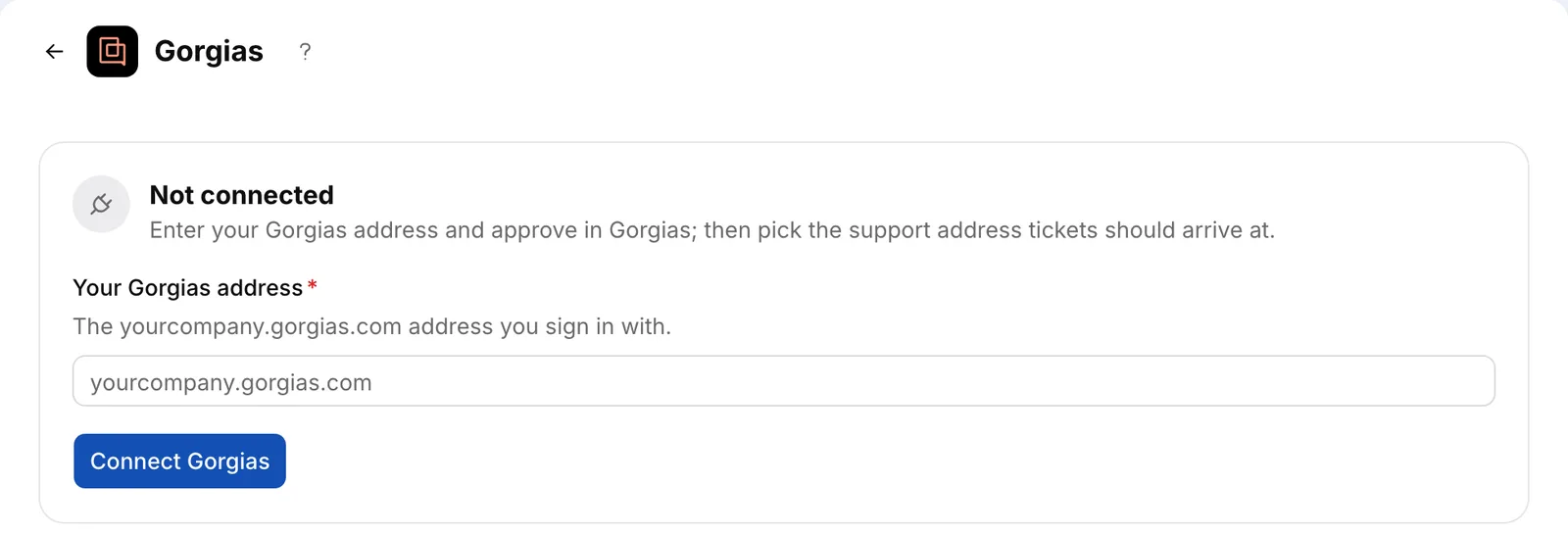
- In agenola, open Integrations → Gorgias.
- In “Your Gorgias address”, enter the address you sign in to Gorgias with, such as yourcompany.gorgias.com, and press “Connect Gorgias”.
- Approve on Gorgias's consent screen. You come back to the same page.
Choose the support address
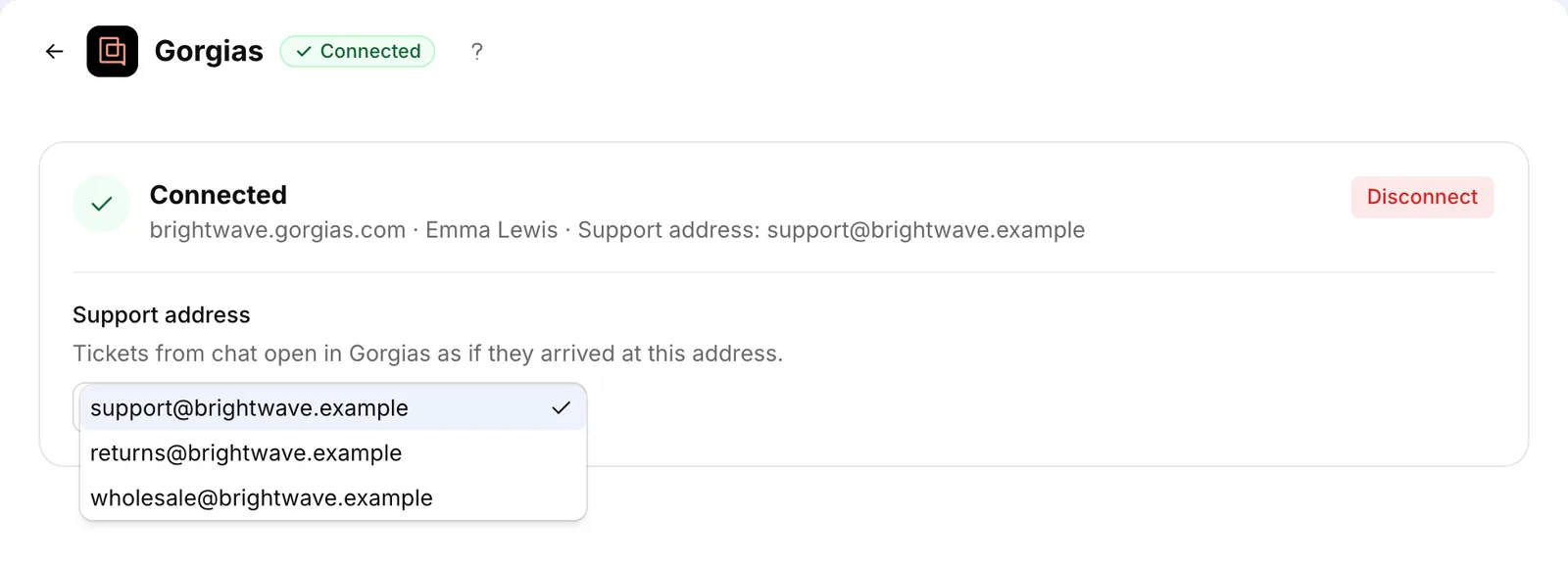
On the connection card, pick an address under “Support address”. The list shows the support email addresses connected in your Gorgias; if there is only one, it is already selected.
Tickets from the chat open in Gorgias as if they were sent to this address. Until an address is chosen, nothing is sent to Gorgias and the card says “No support address selected: tickets won't be sent to Gorgias until you choose one.”
Check that it works
- Open your flow's public link in a private browser window, or your website where the assistant runs.
- Ask for something the assistant hands off to your team, and give your email address when asked.
- Within a few seconds a new ticket appears in your Gorgias inbox, sent from your email address to the support address. Replying to it sends an email to that address.
- In agenola, open Requests: the request shows a “Gorgias #…” link that opens the ticket, and its status says “Managed in Gorgias”.
Use Gorgias in your flows
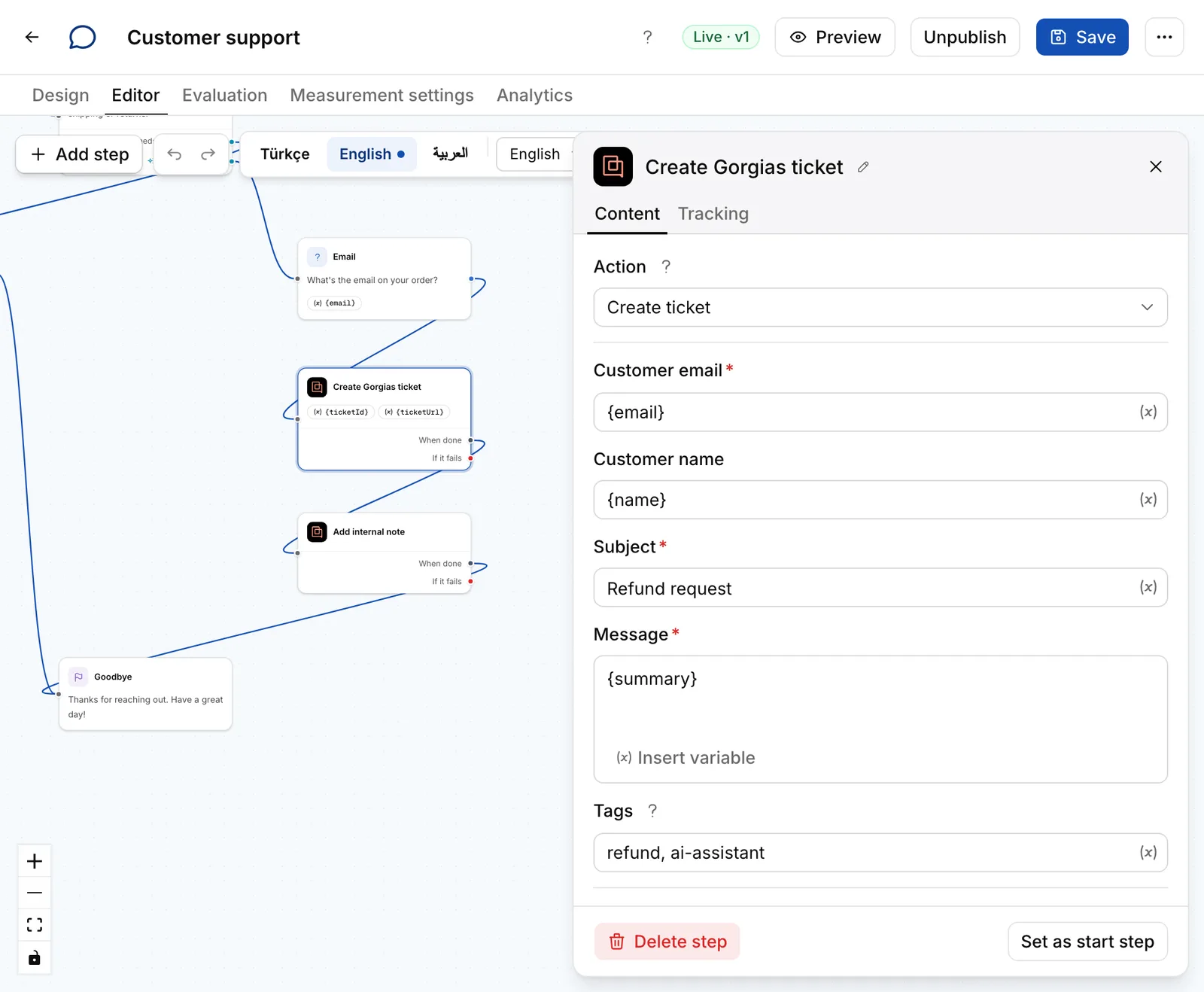
In the flow editor, choose Add step → Integrations → Gorgias, then pick an action:
- Tickets: create, get, list, update (status, subject, tags) and delete.
- Internal note: adds a note agents see on the ticket; it isn't sent to the customer.
- Customers: create, get, list, update and delete.
A step can save the new ticket's number and link in variables (for example {ticketId}) for later steps. Internal notes are written in the name of the person who connected Gorgias.
Tickets in Gorgias are either open or closed. When the Requests screen opens, agenola reads the current status of forwarded requests from Gorgias, so manage the status in Gorgias.
Troubleshooting
- The support address list is empty: connect a support email address in Gorgias (Settings → Channels → Email), then reload the page in agenola.
- “Permission wasn't granted in Gorgias; nothing was connected.”: the consent screen was declined. Connect again and approve.
- “The connection timed out” or “Gorgias didn't complete the connection”: press “Connect Gorgias” again.
- “Invalid Gorgias address”: enter the address you sign in to Gorgias with, as yourcompany.gorgias.com.
- “A help desk is already connected”: one help desk can be connected per workspace. Disconnect Zendesk, Intercom or Freshdesk first.
- “The Gorgias connection can't be used”: the app was probably removed in Gorgias. Press “Disconnect”, then connect again.
- A request shows “Couldn't send to Gorgias”: check that a support address is selected and the connection works, then press “Resend” in the request details.
- Your reply doesn't reach the visitor: replies go to the email address the visitor left. If they left none, the ticket says so at the top; use the contact details in the ticket instead.
- Internal notes stopped working: notes are written in the name of the person who connected. If that person was removed from Gorgias, someone else on the team should disconnect and connect again.
Still stuck? Email us at info@agenola.ai.
Disconnecting
In agenola, press “Disconnect” on Integrations → Gorgias. New requests are no longer sent to Gorgias, the Gorgias steps in your flows stop, and agenola's permission in Gorgias is revoked. Tickets already in Gorgias stay there.
Removing the app in Gorgias also ends the connection; agenola's Gorgias page then asks you to connect again.
Connecting and disconnecting require the Owner or Admin role in agenola.
Next steps
Related articles
- How do I connect Zendesk, Gorgias, Intercom or Freshdesk?Requests opened in chat also land in your help desk; your team replies from there and the status comes back to agenola.
- Requests: viewing and handling customer requestsSee the requests customers leave you, change their status, add team notes and send them to your help desk.
- Request, Integration Action and End stepsHow to set up the steps that open a request, act in external systems and end the flow.
- How do integrations work?Connect your store, messaging channels and work tools to agenola so the assistant and your flows can work with them.